Running a club?
Members, chat, events, rides, money and photos in one app. Otrip does the chasing, counting and reminding, so you can get on with running the club.
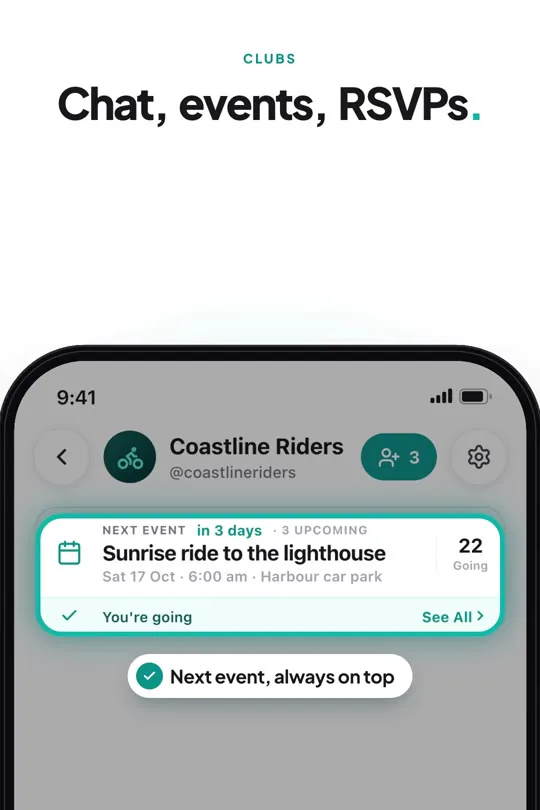 Watch the video · 0:24ClubsYour crew deserves a home.Play video
Overview
What running a club looks like today
Most clubs run on a group chat, a spreadsheet and a lot of goodwill. Someone lets new people in by hand, keeps a list of who paid, counts replies to see who is coming, reminds everyone the day before and collects photos from ten different phones. Otrip turns that work into a few taps, and much of it now happens on its own.
What Otrip does for you
| Task | By hand | With Otrip |
|---|---|---|
| Letting people in | By hand: Vetting strangers who message the group to ask if they can join. | With Otrip: People answer your questions and agree to your rules before they ask. Requests wait in one list, with their answers. |
| Dues | By hand: A spreadsheet of who paid, and chasing people one by one. | With Otrip: Set dues once. Each period starts by itself and reminders go only to members who have not paid. |
| Payments | By hand: Matching bank transfers to names. | With Otrip: Members tap I paid. You confirm or reject it, and they are told either way. The totals add up by themselves. |
| Headcount | By hand: Counting replies in the chat. | With Otrip: Going, Maybe and Can’t go are counted for you, and the event shows Full when the spots run out. |
| Reminders | By hand: Messaging everyone the day before. | With Otrip: Reminders go out before every event, at the times each member chose. |
| Changes | By hand: Telling everyone the start time moved. | With Otrip: Everyone going or maybe is told when you change the time or place. |
| Paid events | By hand: Tracking who paid, who dropped out and who is owed money. | With Otrip: A receipt comes with each Going. Spots are held while you check, and drop-outs show as Refund due. |
| Photos | By hand: Pictures scattered across everyone’s phones. | With Otrip: Every event has a shared album, and all of them are gathered in Event albums. |
| Being found | By hand: Posting about the club everywhere. | With Otrip: A public club is listed in Discover for its country and has its own web page. |
Who does what
One admin runs the club, with no voting. Settings, roles, bans and the money rules are theirs.
Approve join requests, remove members and create club events.
Confirms payments and records spending in the club Fund.
Chat, answer events, pay dues and see the club’s photos.
Hear about public events only, never chat, members, money or club-only events.
Start your club
Setting up takes a couple of minutes, and you can change everything later.
- 1
On Home, tap + on the Travel Tracker card at the bottom, then Club.
- 2
Add a logo and a cover photo, the club’s Name and a Username. The username is the club’s link: otrip.io/club/yourname.
- 3
Write a short description, add links to your website or socials, and pick up to 3 interests.
- 4
Choose the Country; it decides which Discover list the club is in. Pin the Location: the city, or the spot where you usually meet.
- 5
Under Visibility, choose Public (anyone can find it and ask to join) or Private (invite only; only members can see it). Tap Create.
Joining clubs is always free. The free plan can run 1 club, and Otrip Pro up to 5.
Members and joining
Decide who gets in, and let Otrip collect what you need to know before they do.
Your rules and questions are shown before anyone asks to join.
Requests wait in one list, with each person’s answers beside them.
People who open your invite link join straight away. People who find the club in Discover ask first.
A ban also stops invite links, so a banned person cannot come back in.
Set the rules
- 1
Open the club and tap the settings button at the top for Club settings.
- 2
Add Club rules: what every member agrees to.
- 3
In Join requirements, set an age range, gender and languages, and add up to 3 questions. People answer in up to 200 characters, and only the admin and moderators see the answers.
- 4
Tap Invite people to invite people in the app or share the club’s link.
Handle requests
- 1
When someone asks, the club shows Requests to join. Open it to read each person’s answers.
- 2
Tap Accept or Decline. The admin and moderators can both do this.
Manage members
- 1
Open Members and tap anyone to manage them.
- 2
Make them a Moderator or a Treasurer, or tap Remove from club. Remove and ban keeps them out until you unban them.
- 3
Add Member tags: labels only, they never give powers. Every club has ready-made tags, and the admin can create the club’s own.
- 4
Stepping down? Use Hand over admin. The person gets an offer and must accept; until then you stay the admin, and afterwards you become a moderator.
Club chat
Every club has one chat for its members, and it works with no signal.
- 1
Tap + in the chat to share from the Camera or Gallery, a Document, your Location or a Poll.
- 2
The admin and moderators also see Event in that menu, and members see I paid while the Fund is on.
- 3
In Club settings → Who can post, choose Everyone or Admin and moderators. The second turns the chat into an announcements channel.
- 4
Members who want quiet can Mute the club: no pushes, but alerts and unread counts stay.
Fund management
The Fund is the club’s money book: dues, payments, spending and who is holding the cash. It runs on the club admin’s Otrip Pro.
Each dues period starts by itself, in the club’s time zone.
Reminders go only to members who have not paid, on the days you pick, from a week before to a week late.
New members start paying from the next period.
When a member says they paid, it waits for you, and they are told when it is confirmed or rejected.
What has been collected, what is waiting and what is not paid yet are always up to date.
Set it up
- 1
Go to Club settings → Money → Dues. Set the amount, currency, how often (One time, Monthly, Every 3 months or Yearly), the day it is due, an optional joining fee and the reminders.
- 2
Add Payment types for other things members pay for, and the Club accounts they pay into.
- 3
Choose Who sees who paid: all members, or just the admin and treasurers, with or without moderators. Everyone always sees the total, the spending and their own payments.
- 4
From a member’s card, make them a Treasurer or mark them Exempt from dues.
Day to day
- 1
Members tap I paid in the Fund or in the chat’s + menu. The period and amount are filled in for them.
- 2
Payments wait under Waiting for you. Tap Confirm or Reject.
- 3
Use Record payment for cash handed to you, and Add spending for what the club bought.
- 4
See Who’s holding it, and use Move money when cash changes hands.
- 5
Open History to see every payment and spend.
If the admin’s Pro ends, members can still send payments; confirming, recording and moving money wait until it is renewed.
Event management
Plan the club’s rides, hikes and meetups as events. Otrip counts, reminds and keeps everyone up to date.
Members get an alert when you create an event.
Answers are counted, and the event shows Full when the spots run out.
Reminders go out before the start, at the times each person chose.
Everyone going or maybe is told when you change the time or place.
Followers hear about public events.
Create an event
- 1
In the club chat, tap + → Event. The admin and moderators can do this.
- 2
Choose Physical or Online. Add a title, the details and when it Starts, then pick the place and an optional meeting point, or add the meeting link. Only people going see the link.
- 3
Under Who can see it, choose Club members only (turn on Show on the club’s page to let anyone see it and its photos), or Public: anyone with the link can go as a guest, and it is listed in Discover.
- 4
Under Before you go, add Rules and Requirements and questions.
- 5
Under Spots and price, set a limit (guests count too) and a price if it is paid. Tap Create.
Paid events
- 1
Set the price, How to pay, Money goes to and a Refund policy. The price and refund policy cannot change after you create the event.
- 2
When someone taps Going, they send a photo of their receipt, and their spot is held while you or the treasurer check it.
- 3
Tap Confirm or Reject. Confirmed money goes into the club Fund under that event. A rejected person is told why and can send a new receipt.
- 4
If someone gives up a paid spot, is removed, or the event is cancelled, they show as Refund due. Pay them back, then tap Mark refunded.
On the day and after
- 1
Post an update on the event for everyone going and maybe, with or without a notification. Nobody can reply.
- 2
Open Who’s coming to see every answer, remove someone or invite more people. Tap Export guest list for a PDF, with the join answers if you like.
- 3
Add photos to the event album.
- 4
Need to call it off? Cancel event tells everyone going or maybe and freezes the answers.
Paid club events need the club admin’s Pro, because their payments go into the Fund. Free events work on every plan.
Ride management
Turn a club event into a group ride, and ride as one on a live map.
Everyone going gets a Join ride button, so nobody has to be added by hand.
The map warns when a rider falls behind or leaves the group’s route.
With no signal, the ride keeps recording and sends its points when the phone is back online.
A rider who has stopped for a while is asked if they are still riding, and the ride stops by itself after 2 hours stopped.
- 1
On the event page, in the admin section, tap Turn into a ride. Everyone going, guests too, gets a Join ride button; nobody is added without tapping it.
- 2
The club admin runs the ride, and you are a ride admin too. The ride copies the event’s rules.
- 3
Give riders a role: Lead sets the pace, Tail rides last so nobody is left behind, Marshal waits at turns, and Support vehicle carries spares.
- 4
Each rider taps Start ride. Everyone riding shows on the map, with the convoy order and how far the tail is behind.
- 5
At the end, each rider taps Stop ride and gets a summary: distance, duration and speed.
Planning a weekend away instead? Turn into a trip works the same way. Each event can become one trip or one ride.
Public listing
A public club can be found by anyone looking for a group like yours.
Discover → Clubs lists public clubs by country. The club’s country decides its list, and changing the country moves it.
The club’s location tells people how far away it is.
Public events show in Discover → Events, and on the club’s page.
Anyone can Follow the club to hear about its public events. Followers never see the chat, members, money or club-only events, and they do not see each other.
A private club is not listed anywhere. People join it with an invite or its invite link.
Club page and media
Your club has a page in the app and on the web, ready to share.
A public club has a web page at otrip.io/club/yourname, with its description, upcoming and past events, photos and the rules to join, plus a button to open it in Otrip.
You can change the username once every 15 days. Old links still open the club for 30 days.
Tap Edit club to change the logo, cover, description, links and interests.
Club settings → Event albums gathers the photos from every event in one place.
Each event has its own album. Everyone who can open the event sees its photos.