Hosting an event?
Set a time and place, see who is going, collect payments and keep everyone posted, for your club or just your friends.
 Watch the video · 0:27EventsMeetups without the chaos.Play video
Overview
What organising an event looks like today
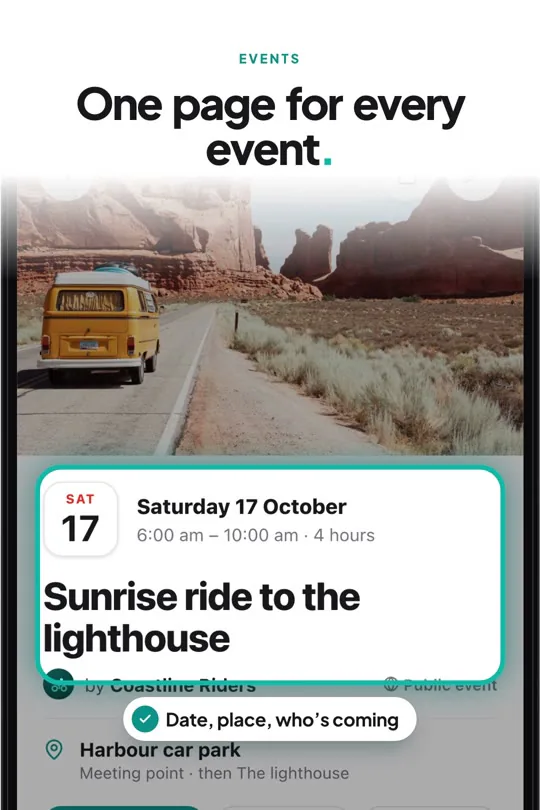
A meetup planned in a group chat means asking the same questions twice, counting replies, chasing payments and repeating the details for everyone who joins late. Otrip gives every event its own page that does the counting, reminding and telling for you.
What Otrip does for you
| Task | By hand | With Otrip |
|---|---|---|
| Who’s coming | By hand: Counting thumbs-up in a chat. | With Otrip: Going, Maybe and Can’t go, counted on the event page. |
| Spots | By hand: Keeping a list and turning people away. | With Otrip: Set the number of spots and the event shows Full by itself. |
| Questions | By hand: Asking each person the same things. | With Otrip: Up to 3 questions are answered when someone taps Going. Only you see the answers. |
| Reminders | By hand: Messaging everyone the day before. | With Otrip: Reminders at the times each person picked, and an optional sync to their calendar. |
| Changes | By hand: Telling everyone the plan moved. | With Otrip: Everyone going or maybe is told when you change the time or place. |
| Late news | By hand: Re-posting the details again and again. | With Otrip: Post an update on the event page, with a notification if you want one. |
| Payments | By hand: Matching transfers to names and working out refunds. | With Otrip: A receipt with each Going, a held spot, and a clear list of who is Confirmed, Waiting or Refund due. |
| Guest list | By hand: Copying names into a spreadsheet. | With Otrip: Export a PDF guest list in one tap. |
| Photos | By hand: Collecting pictures afterwards. | With Otrip: A shared album on the event page. |
Who does what
Anyone can host one from Home, for friends they invite or for the public.
Created by the club’s admin or moderators, for members, the club’s page or the public.
People outside the club who go to a public club event.
Create an event
One screen, and you can change almost everything later.
- 1
For your own event, go to Home → + → Event. For a club event, tap + in the club chat → Event.
- 2
Choose Physical or Online.
- 3
Add a Title, the Details (what is the plan, what to bring) and when it Starts. An end time is optional.
- 4
For a physical event, pick the Event location and an optional meeting point; directions and reminders use the meeting point when there is one. For an online event, add the Meeting link.
- 5
Choose who can see it, add any rules, questions, spots or price, and tap Create. For a personal event, you then pick who to invite.
You can host a limited number of upcoming events at a time. When one is over, you can create another.
Who can see it
Pick how far the event reaches.
A personal event
Only people you invite: you pick who. They get an alert and can say Going, Maybe or Can’t go.
Public: anyone with the link, and it shows in Discover.
A club event
Club members only: only members of the club can go.
Show on the club’s page: anyone can see the event and its photos, but only members can go.
Public: anyone with the link can see it and go as a guest. It is listed in Discover.
Names on a public event are public.
Invites and answers
People answer in one tap, and you see everything in one list.
Answers are counted and shown on the event page.
The meeting link appears only for people who are going.
Your questions are asked only of people who tap Going. Maybe and Can’t go never are.
- 1
Open Who’s coming and tap Invite people to invite more people.
- 2
Everyone answers Going, Maybe or Can’t go, and can change their answer later.
- 3
Under Before you go, add Rules everyone agrees to, and Requirements and questions: an age range, gender, languages and up to 3 short questions.
- 4
When someone taps Going, they tick that they meet the requirements and agree to the rules, and answer your questions. Only you see the answers.
Spots and payments
Limit the places, charge for them, and keep track of every payment and refund.
The event shows Full as soon as the last spot is taken.
A paid spot is held while the receipt is checked.
People are told when their payment is confirmed or rejected.
Anyone who drops out after paying, or is removed, shows as Refund due. So does everyone who paid, if you cancel.
Set it up
- 1
Under Spots and price, tap Spots and set a limit. Guests count too; leave it empty for no limit.
- 2
For a paid event, set the Price per spot, How to pay and a Refund policy. A fair default is filled in for you. The price and refund policy cannot change once the event is created.
- 3
For a club event, choose where the money goes: one of the club’s accounts, or whoever confirms the payment.
When people pay
- 1
When someone taps Going, they send a photo of their receipt, and their spot is held.
- 2
Open the payment and tap Confirm or Reject. A rejected person is told the reason and can send a new receipt.
- 3
If someone gives up their spot, they see your refund policy first, and you are told they are owed a refund.
- 4
Pay the refund back, then tap Mark refunded and enter the amount.
Paid events are part of Otrip Pro. For your own event, you need Pro; for a club event, the club admin does, because its payments go into the club Fund. Free events work on every plan.
Reminders and calendar
Nobody needs to ask “what time was it again?”
Reminders go out before the start for everyone going.
Events you are going to can be added to your phone’s calendar.
- 1
Set your defaults in Profile → settings → Events: when to Remind me for in-person and online events, and whether to Remind me for Maybe too.
- 2
Turn on Sync to calendar to add events you are going to. Maybe is never added.
- 3
On any event, tap Reminders to choose different times just for that event, or Calendar to add it to your calendar.
Updates and changes
Keep everyone up to date without a long chat thread.
Everyone going or maybe is told when you change the time or place.
Cancelling tells everyone going or maybe, and everyone still invited.
- 1
On the event, tap Post under Updates and write what everyone needs to know. Turn on Notify everyone to send it as a notification. It shows on the event page and nobody can reply.
- 2
Tap Edit event to change the details. Going and Maybe are told when the time or place changes.
- 3
Need to call it off? Tap Cancel event. The answers freeze and the event stays on everyone’s list, marked cancelled.
Guest list
See who is coming at a glance, and take it with you.
- 1
Open Who’s coming. Filter by Going, Maybe and Can’t go, and, for paid events, Waiting and Refund due.
- 2
Tap a person to see their receipt, or tap Remove from event.
- 3
Tap Export guest list, pick who goes on it (confirmed, waiting, going, maybe) and whether to include the join answers, then Export PDF.
The PDF is made on your phone and has names in it, so share it with care.
Photos
Every event has a shared album, looked after by whoever runs the event.
- 1
As the host, or a club’s admin or moderator, tap Add photos on the event page to add pictures from the day.
- 2
Everyone who can open the event sees the album. Tap See All to open it.
- 3
Long-press a photo to select it, then remove it for everyone.
After the event
Keep the group together for what comes next.
- 1
In the host section on the event page, tap Turn into a trip or Turn into a ride.
- 2
Everyone going, guests too, gets a Join trip or Join ride button. Nobody is added without tapping it.
- 3
The trip or ride copies the event’s rules and is managed as a trip or a ride from then on. Each event can become one of them.